Animations
Add video animations to your workouts
Use video animations to bring in your workout title, introduce your trainer, or remind viewers to subscribe. Pick from 90+ presets and click to add one right where you've paused the video.
No credit card required. During Open Beta, you can join our Discord and talk directly with the ActiveSnap team on any plan.
See it in action
Add an animation right where you want it
Start with a moving title, a trainer name bar, or a quick subscribe prompt.
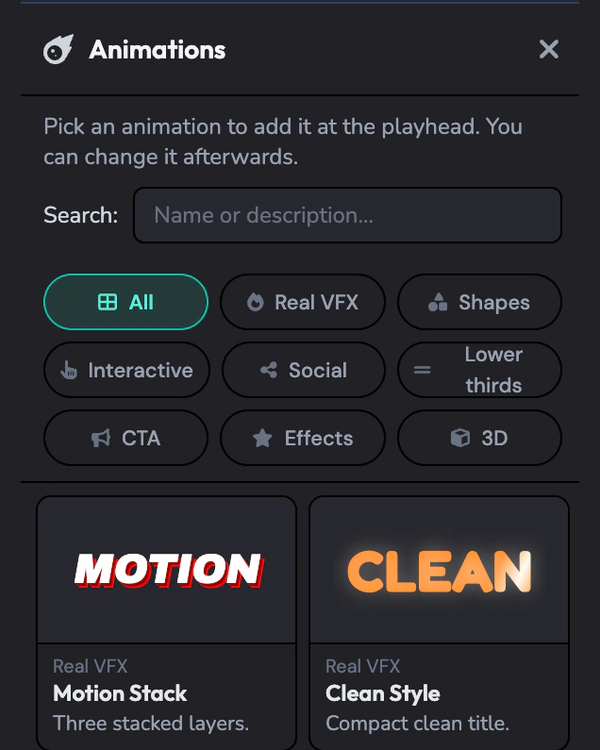
Browse titles, shapes, social overlays, and effects in the Animations panel. 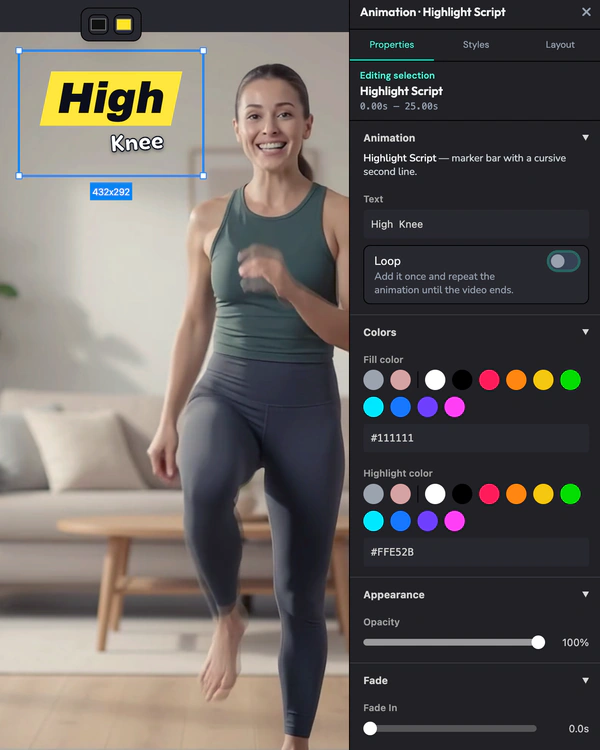
Change an animation’s text, colors, and fade. 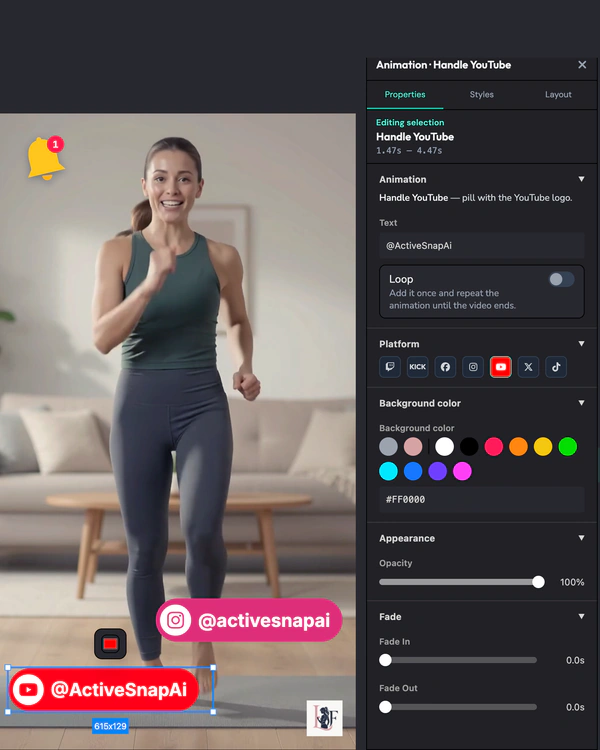
Show viewers where to find you on social.
What you get
Open with a moving title
Try Motion Stack, Gold & White, or Wave Bounce to bring your workout title on screen.
Introduce your trainer
Add a lower third to show the trainer’s name and role. Try Thin line, Solid bar, or Glass card.
Show viewers where to find you
Put your Instagram, TikTok, YouTube, or another social handle on screen. Use Social links to show several handles together.
Add a clear call to action
Pick a Subscribe, Comment, or Swipe up animation and place it where it fits your video.
Draw attention to a moment
Try a Radial burst, a Phrase slam, or a Light leak to draw the eye to a title or cue.
Place it on the timeline in one click
Move the playhead to the moment you want the animation to start, then click a preset. You can change it afterwards.
How it works
- 1
Pick the moment
Move the playhead to where you want the animation to start.
- 2
Open Animations
Browse a category or search by name or description.
- 3
Click a preset
ActiveSnap adds it at the playhead. You can change it as you edit.
- 4
Ask the AI Assistant
Ask for an animated text style, a template, or a transition. Try “Give the exercise name a glitch effect,” “Add a branded intro with the workout name,” or “Put a fade on every cut.” When several styles fit, you can preview the options and choose one.
Animation presets and editing tools
Find overlays in the Animations panel. To animate existing text, use Text Styles. To add a branded intro or outro, use Templates. To change how two clips meet, use Transitions.
Real VFX
45+- Motion Stack
- Gold & White
- Wave Bounce
Shapes
10- Radial burst
- Scribble star
- Sun ring
Interactive
1- Interactive lamp
Social
10- Social links
- Follow me
- Handle Instagram
Lower thirds
10+- Thin line
- Solid bar
- Glass card
CTA
7- Subscribe
- Comment
- Hook title
Effects
10+- Phrase slam
- Checklist
- Light leak
3D
1- Subscribe 3D
Text Styles
90+- Essentials
- Effects
- Cinematic
- Social
- Lifestyle
Templates
15- Intro
- Transition
- Outro
Transitions
7- Fade
- Slide
- Wipe
- Flip
- Clock
- Iris
- Hard cut
Frequently asked questions
Do I have to animate anything by hand?
The presets already include the motion. Pick one to add it to the timeline. Text Styles and Templates also have previews you can play before applying them.
Can I change how fast a Text Style moves?
Yes. Auto uses the style’s default timing. Off holds it on one frame. Choose a setting from 1 to 10 to adjust the speed yourself.
How do templates use my brand?
Templates can pull in your project Brand’s logo, colors, name, and tagline. You can edit the text or colors on an individual template without changing your Brand settings.
Where do transitions go?
A transition goes on the cut between two clips that touch on the same track. It stays with the cut when you trim the clips.
Can I change an animation after adding it?
Yes. You can change it afterwards. To remove a Text Style, choose None. To edit or remove a transition, click it on the timeline.
Do Text Styles keep my brand font?
It depends on the style. Some use a preset font. Others add motion to your existing font. Styles with accent colors use your Brand colors.
What can I ask the AI Assistant to add?
Ask for a Text Style, a template, or a transition. For example, say “Add an outro at the end” or “Put a fade on every cut.” If several styles fit, you can preview the options before choosing.
Explore more features
Clips Builder
Describe the clips you want and turn one or more workouts into short vertical videos.
Thumbnail Generator
Turn a frame from your workout, or your own image, into thumbnails in your Brand's colors and font.
Filters
Give your footage a new look in one click. Browse six categories and see each one on your own shot before you add it.
Licensed music library
ActiveSnap's own AI-generated music in five energy levels, licensed for videos you make with ActiveSnap.
Timers & loaders
Put a countdown or count-up timer on screen, with bars that fill as you go, so viewers can follow with the sound off.
Captions
Subtitles written from your audio in one click, in styles that pick up your brand font and colors.
Picture-in-picture preview
Show the next exercise in a small corner window while the current one plays, so viewers stay for the whole set.
Social media calendar
Post now or pick a time for YouTube, TikTok, Instagram and Facebook, and see every post on one calendar.
Full toolbox
Every ActiveSnap feature for fitness creators, on one page.
Also see AI fitness video editor and Pricing.
Add an animation to your next workout video
Start with a moving title, a trainer name bar, or a quick reminder to subscribe.
No credit card required.
Last reviewed: 2026-11-17