
Captions
Add video captions to your workout. Just ask.
Type “Add captions to this video” in the AI assistant, or click Add captions in the editor. ActiveSnap turns your spoken cues into on-screen text so viewers can follow along with the sound off.
No credit card required. During Open Beta, you can join our Discord and talk directly with the ActiveSnap team on any plan.
See how captions work
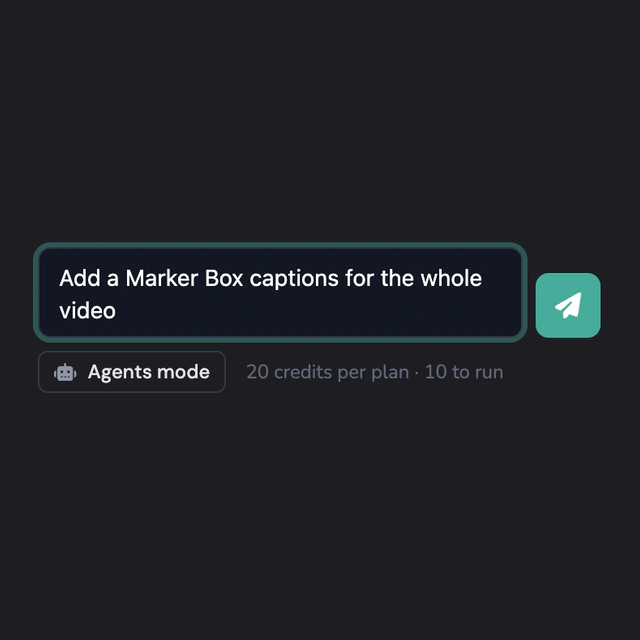
Ask the AI assistant to add captions to your workout. 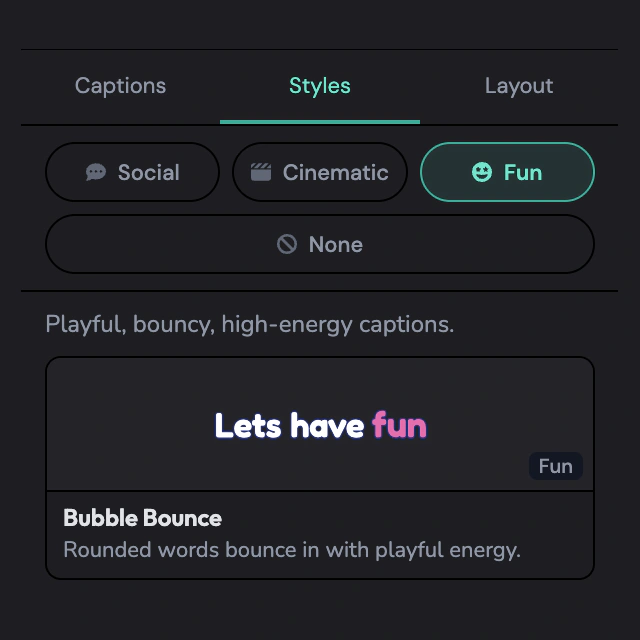
Browse preset caption styles. 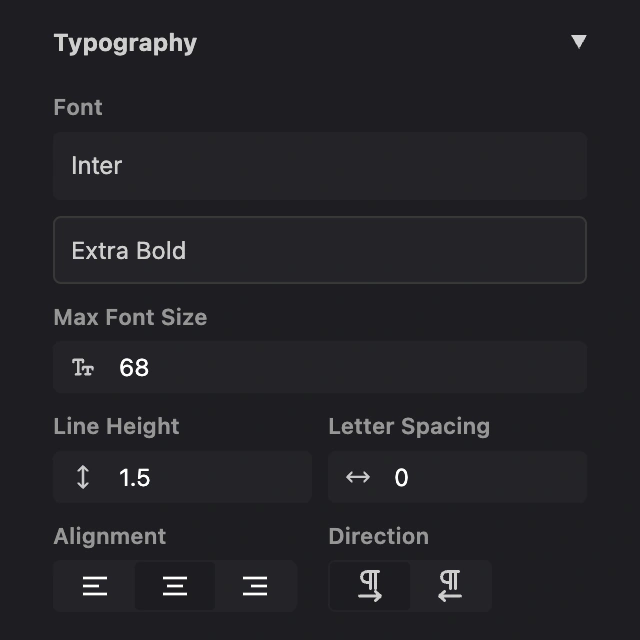
See captions in your brand fonts and colors.
What you get
Add captions with a click or a chat
Ask the AI assistant or use Add captions in the editor. Either way, ActiveSnap creates captions from your audio.
Help viewers follow along on mute
Put cues like “switch sides” and “rest for 20 seconds” on screen so viewers can follow the workout with the sound off.
Preview a style before you pick it
Play a short preview to see how the captions look and move.
Choose how your captions appear
Pick a style that highlights each word, shows a full sentence, or displays one line at a time.
Use your brand fonts and colors
New captions start with your brand fonts and colors so they fit with the rest of your video.
Caption the whole video or just one cut
Captions get their own row above the video or cut you chose.
How it works
Using the AI assistant? Type “Add captions to this video.” Once the captions appear, select them on the timeline to pick a style.
To add captions from the editor:
- 1
Open Captions
Click Captions in the timeline editor sidebar.
- 2
Choose what to caption
Pick the whole video or a single cut from the dropdown.
- 3
Click Add captions
ActiveSnap turns your audio into captions and places them above the video or cut on the timeline. You can also use Add Captions in the toolbar to caption the selected main video.
- 4
Pick a style
Click the captions on the timeline to open their settings. Play a few previews and choose the one you like.
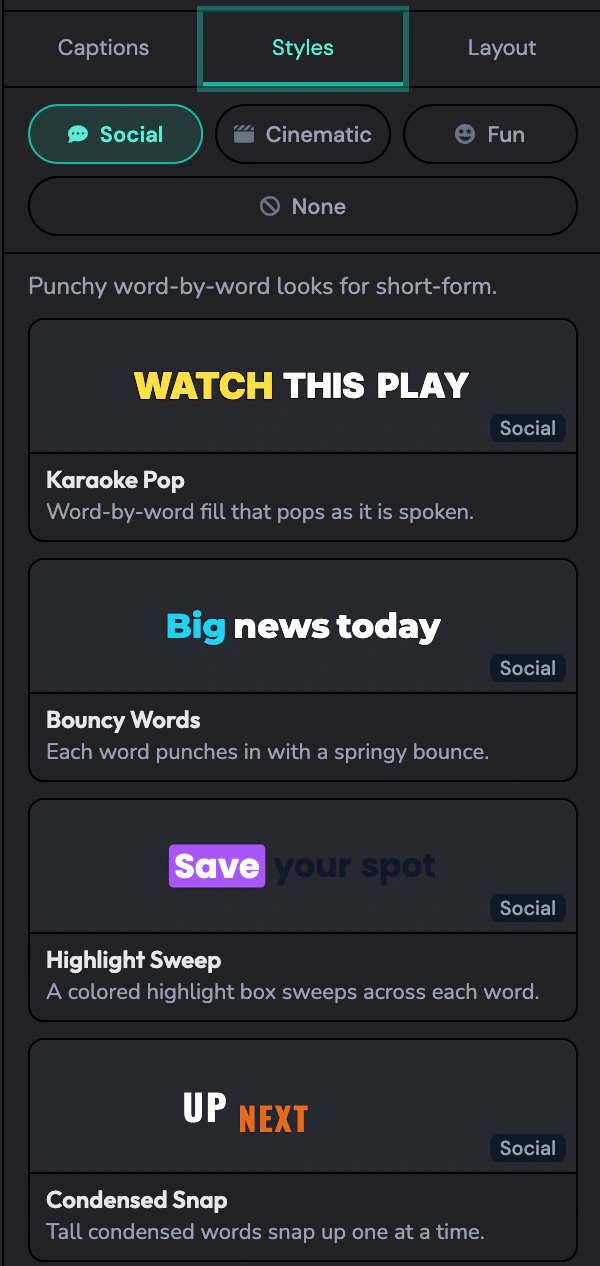
Caption styles
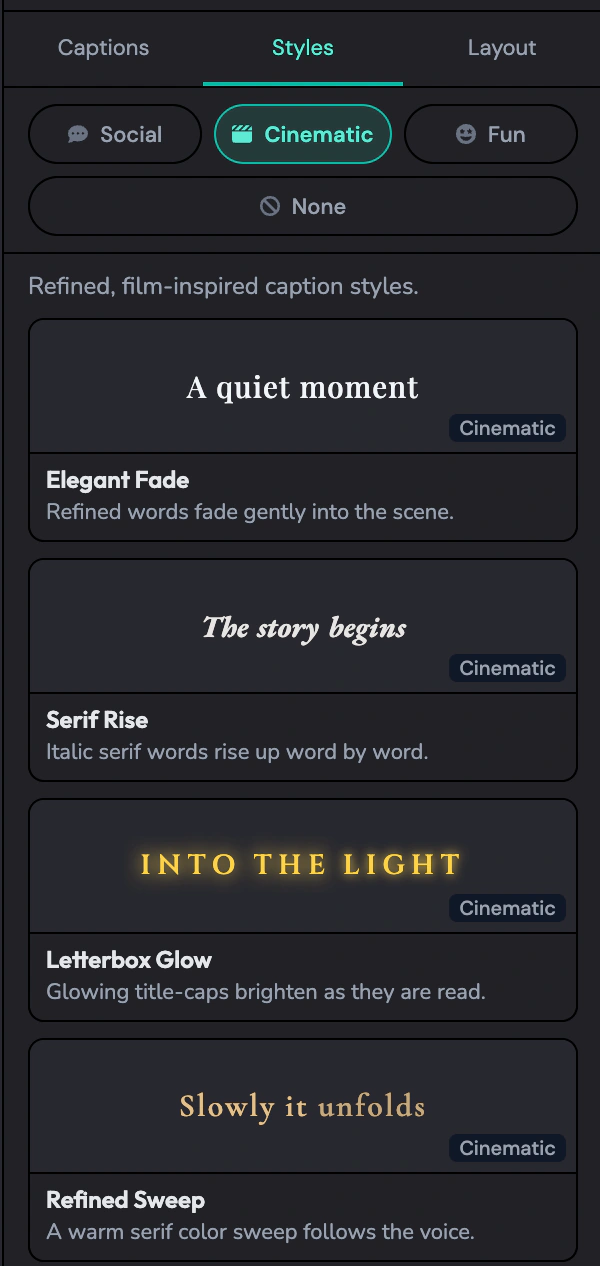
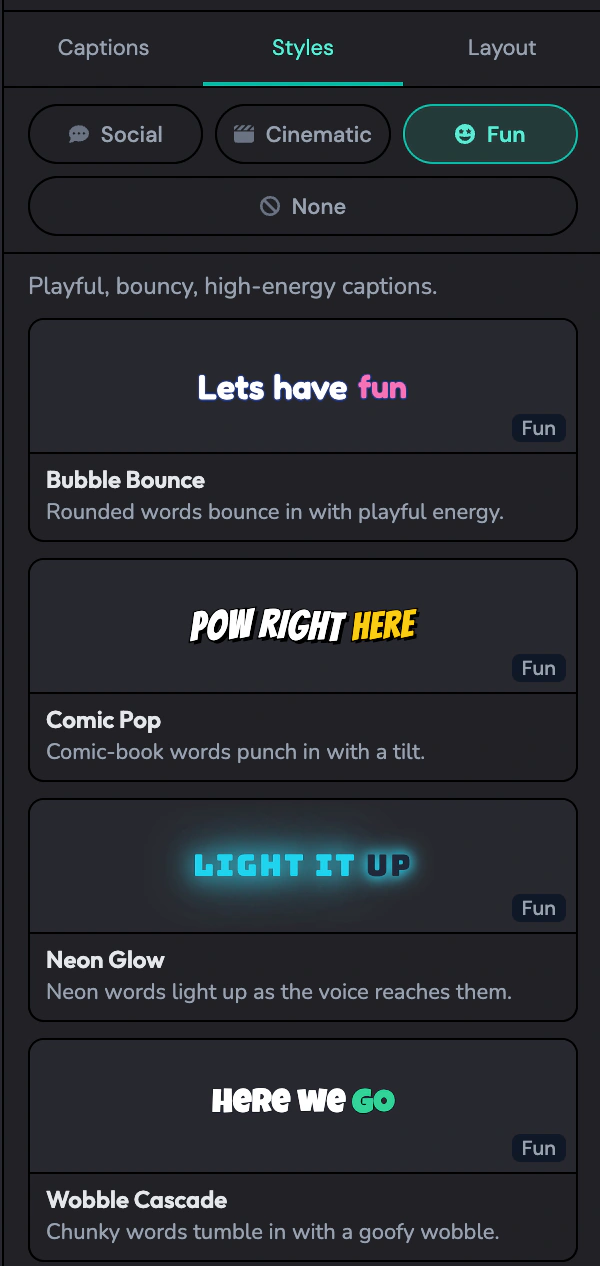
Play a preview to see how each style looks and how the words appear.
Social
Bold, high-contrast text for vertical videos.
Cinematic
A quieter, film-inspired look.
Fun
Playful styles with a bit more energy.
Frequently asked questions
Can I add captions through the AI assistant?
Yes. Type “Add captions to this video” and ActiveSnap creates captions from your audio. You can also select a video in the Captions tab and click Add captions.
Why caption a workout video?
Viewers can read your instructions even with the sound off.
Can I caption just one part of my video?
Yes. Choose that cut in the Captions dropdown. The captions appear above it on the timeline and apply only to that section.
What caption styles can I choose?
Choose from Social, Cinematic, and Fun styles. Each one has a preview you can play before applying it.
Can captions highlight one word at a time?
Yes. Pick a word-by-word style to highlight each word as it’s spoken. Other styles show a full sentence or one line at a time.
Will the captions match my brand?
New captions start with your brand fonts and colors. Some styles use their own font or layout.
Why do the settings change when I pick a style?
Some styles come with a set font or layout. You’ll see controls for the parts you can change.
Explore more features
Clips Builder
Describe the clips you want and turn one or more workouts into short vertical videos.
Thumbnail Generator
Turn a frame from your workout, or your own image, into thumbnails in your Brand's colors and font.
Animations
Drop in moving titles, name bars, text styles and transitions. Templates fill in your logo and colors for you.
Filters
Give your footage a new look in one click. Browse six categories and see each one on your own shot before you add it.
Licensed music library
ActiveSnap's own AI-generated music in five energy levels, licensed for videos you make with ActiveSnap.
Timers & loaders
Put a countdown or count-up timer on screen, with bars that fill as you go, so viewers can follow with the sound off.
Picture-in-picture preview
Show the next exercise in a small corner window while the current one plays, so viewers stay for the whole set.
Social media calendar
Post now or pick a time for YouTube, TikTok, Instagram and Facebook, and see every post on one calendar.
Full toolbox
Every ActiveSnap feature for fitness creators, on one page.
Also see AI fitness video editor and Pricing.
Add captions to your next workout video
Ask the AI assistant to caption your next workout.
No credit card required.
Last reviewed: 2026-11-17