
Thumbnail Generator
Make a thumbnail from your workout video
Pick a frame from your workout or use your own image. Describe the look, add a few words, and get up to four thumbnail versions in your brand colors and font. Save your favorite or download it as a JPEG.
No credit card required. During Open Beta, you can join our Discord and talk directly with the ActiveSnap team on any plan.
Inside the Thumbnail Generator
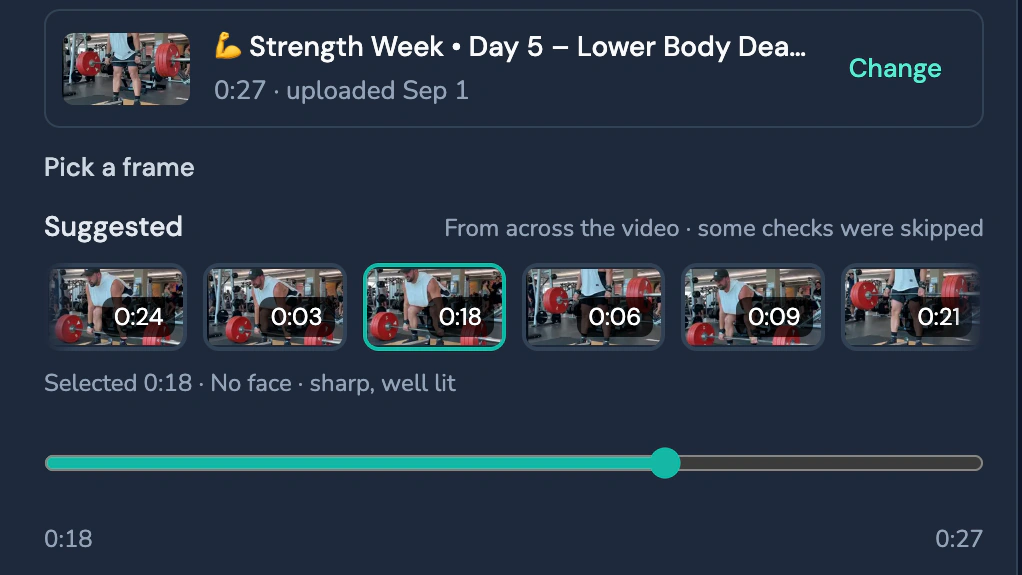
Pick a frame from your workout video. 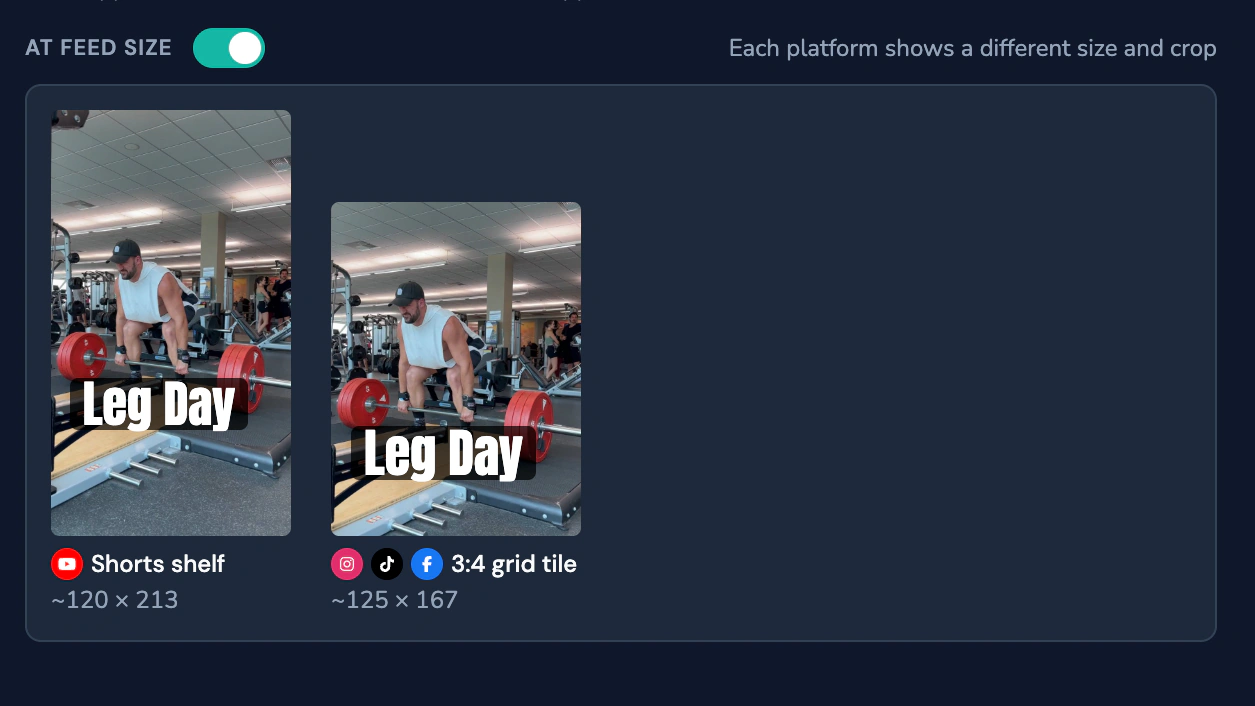
Preview your thumbnail on the YouTube Shorts shelf and in a 3:4 grid tile. 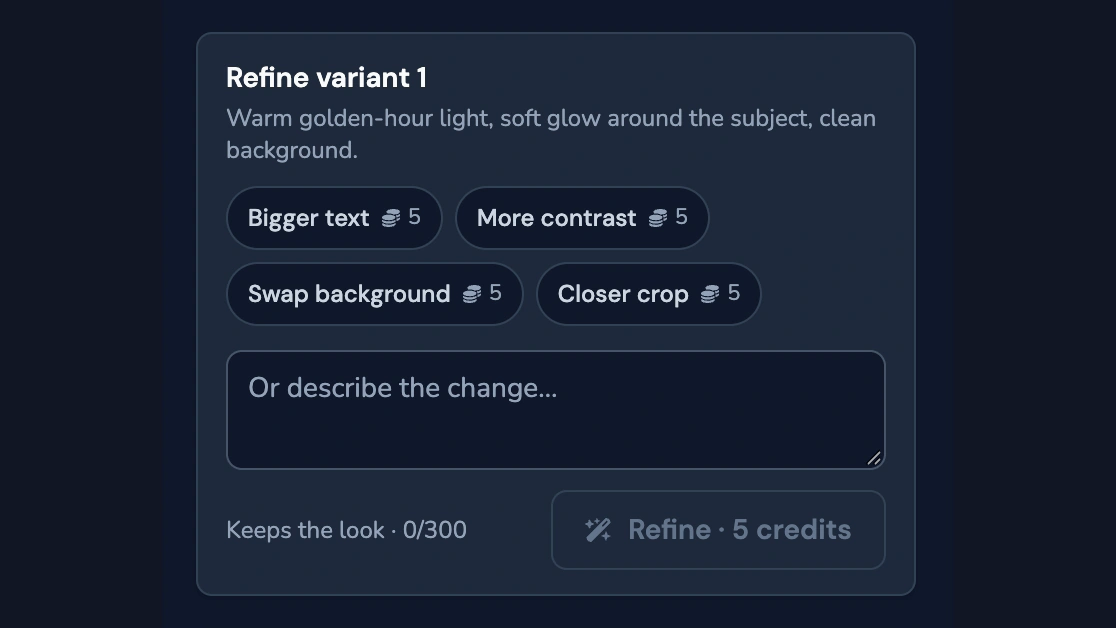
Make the text bigger, boost contrast, swap the background, or crop in closer.
What you get
Start with a workout frame or your own image
ActiveSnap AI suggests up to six well-lit frames where your face is clear. You can also pick an image from Media Assets or upload one from your computer.
Use your brand colors and font
Choose a Brand, then pick a look like Warm light or Night glow, or describe your own.
Choose a format for where you post
Go wide for YouTube and Facebook, vertical for Shorts, Reels, and TikTok, or square for Instagram. Safe zones show where app controls may cover the image.
Check how it looks in the feed
Preview it at feed size before you generate.
Fine-tune your favorite
Make a quick adjustment or describe what you want to change. Each edit starts from the version you picked and keeps its overall look.
See the credit cost up front
If an image fails to generate, you get those credits back when the run finishes.
How it works
- 1
Pick an image
Choose a Brand, then pick a video frame or use your own image. Crop in for a tighter shot if you like.
- 2
Set the look
Pick a preset or describe what you want. You can add up to five words, or four for vertical thumbnails, and choose how the text looks and where it goes.
- 3
Generate your thumbnails
Choose 16:9, 9:16, or 1:1 and make one, two, or four versions. You can leave the page while they generate.
- 4
Save your favorite
Make any final tweaks, then save it to Media Assets or download it as a JPEG.
Thumbnail options
Looks
- Warm light
- Night glow
- Action lines
- Clean backdrop
- High energy
- My brand
Aspect ratios
- 16:9
- 9:16
- 1:1
Text styles
- Block
- Outline
- Bar
Text size
- Small
- Medium
- Large
Versions per run
- 1
- 2
- 4
Quick edits
- Bigger text
- More contrast
- Swap background
- Closer crop
Frequently asked questions
What can I use to make a thumbnail?
Pick a frame from a video that's finished processing, or use a PNG, JPG, WebP, or GIF up to 50 MB.
Will I still look like myself?
ActiveSnap AI tries to preserve your face, pose, and outfit. Results can vary. If it looks off, try refining that version or starting with a different frame.
How much text can I add?
Up to five words across two lines, or four words for a 9:16 thumbnail. You'll see a warning if your text might be hard to read at feed size.
What does it cost?
Each thumbnail, edit, or additional aspect ratio costs 5 credits. You'll see the total before you start. If an image fails to generate, those credits go back to your balance. The Thumbnail Generator is available on every plan.
Can I make the same thumbnail in another format?
Yes. Open a finished thumbnail and choose either of the other two aspect ratios. ActiveSnap AI extends the background where it needs to fill extra space.
How long can I access my thumbnails?
Saved thumbnails stay in Media Assets. Unsaved versions stay in Past thumbnails for 30 days. You can reuse the same settings for your next video in a series.
Explore more features
Clips Builder
Describe the clips you want and turn one or more workouts into short vertical videos.
Animations
Drop in moving titles, name bars, text styles and transitions. Templates fill in your logo and colors for you.
Filters
Give your footage a new look in one click. Browse six categories and see each one on your own shot before you add it.
Licensed music library
ActiveSnap's own AI-generated music in five energy levels, licensed for videos you make with ActiveSnap.
Timers & loaders
Put a countdown or count-up timer on screen, with bars that fill as you go, so viewers can follow with the sound off.
Captions
Subtitles written from your audio in one click, in styles that pick up your brand font and colors.
Picture-in-picture preview
Show the next exercise in a small corner window while the current one plays, so viewers stay for the whole set.
Social media calendar
Post now or pick a time for YouTube, TikTok, Instagram and Facebook, and see every post on one calendar.
Full toolbox
Every ActiveSnap feature for fitness creators, on one page.
Also see AI fitness video editor and Pricing.
Ready to make your first thumbnail?
Pick a workout frame and make a thumbnail in your brand colors and font.
No credit card required.
Last reviewed: 2026-11-17