
Picture-in-picture preview
Add a picture-in-picture preview. Just tell AI where and when.
Tell the AI Assistant where the picture-in-picture preview should sit, how long it should play, and whether it should appear before the exercise or right as it starts. ActiveSnap knows where each exercise starts, so one request can add previews throughout the workout.
Try: “Show each exercise in the top-right corner for five seconds before it starts.”
No credit card required. During Open Beta, you can join our Discord and talk directly with the ActiveSnap team on any plan.
See how the preview works
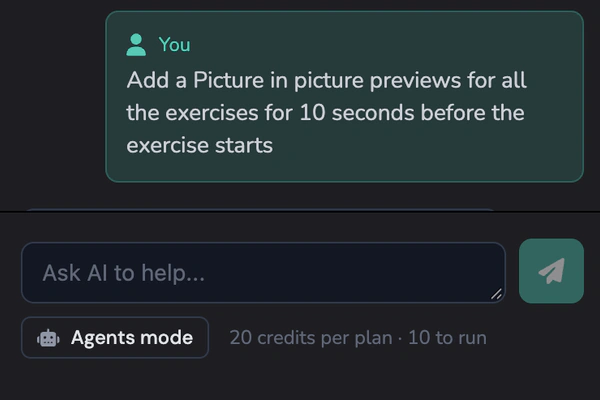
Ask the AI Assistant to add a preview before each exercise. 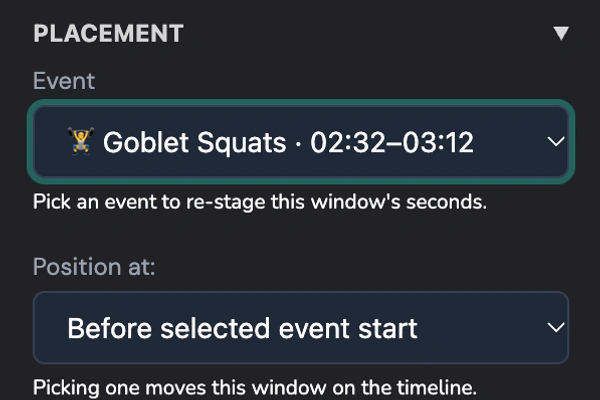
Move the preview or adjust the footage inside it. 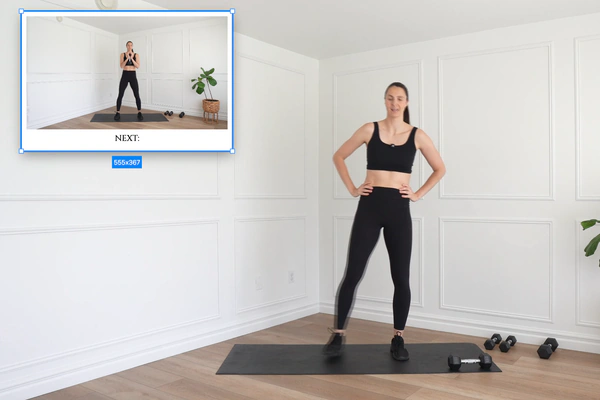
Add an UP NEXT label and match the preview to your brand.
What you get
One request for the whole workout
Tell the AI Assistant where the previews should go and how long they should play. It uses the start of each exercise to place them on the timeline.
Show what’s next or offer a variation
Give viewers a peek at the next move or show an easier version while the current exercise plays.
Resize the window without stretching the footage
Resize the outer frame or adjust what’s visible inside it. The footage keeps its original proportions.
Choose which part of the clip plays
Use Subrange to pick the section of the source clip you want to show.
Make it match your brand
Add a background, border, or shadow in your brand colors. Show an UP NEXT label, the exercise name, or its duration.
Find previews above their source video
Previews from the same video share a track directly above it on the timeline.
How it works
Using the AI Assistant
Ask for the screen position, duration, and timing you want. Try “At the start of each exercise, show a preview in the top-right corner for five seconds.” To update a preview that’s already on the timeline, right-click it and choose Send to Chatbot.
Adding a preview manually
- 1
Open Preview
In the Timeline Editor, switch to Manual Mode and open the Preview tab.
- 2
Choose what to show
Pick a video or one of its cuts, then click Add preview.
- 3
Place the preview
Drag the window where you want it. Use Reframe inside window to adjust the footage within the frame.
- 4
Choose what plays and how it looks
Use Subrange to select the part of the clip you want to show. Add a background, border, shadow, or label from the preview settings.
Preview settings
Backgrounds, borders, shadows, and labels are off by default. Turn on what you need.
Framing
Move or resize the outer frame, or adjust the footage inside it.
- Holding box
- Video window
- Reframe inside window
Source clip
Choose which part of the clip plays in the preview.
- Subrange
Appearance
Use your brand colors for the preview.
- Holding box background
- Border
- Drop shadow
Labels
Choose what text appears on the preview.
- UP NEXT
- Exercise name
- Duration
Frequently asked questions
What is a picture-in-picture preview?
It’s a small video window that plays over your main workout. Use it to show the next exercise or a variation. In the editor, it’s called Video Preview.
Can the AI Assistant add previews for every exercise?
Yes. ActiveSnap detects where each exercise starts. Tell the AI Assistant where the previews should sit, how long they should play, and whether they should appear before each exercise or as it starts.
Does the preview play sound?
The preview is muted so viewers hear the main workout audio.
What’s the difference between moving the window and reframing the footage?
Moving the window changes where it sits on screen. Reframing changes what viewers see inside it.
Can I reposition the trainer inside the preview?
Yes. Choose Reframe inside window, then drag the footage within the frame. If the footage fills the window exactly, zoom in a little to give yourself room to move it.
Can I fade a preview in or out?
Yes. You can split a preview, add a fade, or apply a transition. Each piece can have its own framing.
Explore more features
Clips Builder
Describe the clips you want and turn one or more workouts into short vertical videos.
Thumbnail Generator
Turn a frame from your workout, or your own image, into thumbnails in your Brand's colors and font.
Animations
Drop in moving titles, name bars, text styles and transitions. Templates fill in your logo and colors for you.
Filters
Give your footage a new look in one click. Browse six categories and see each one on your own shot before you add it.
Licensed music library
ActiveSnap's own AI-generated music in five energy levels, licensed for videos you make with ActiveSnap.
Timers & loaders
Put a countdown or count-up timer on screen, with bars that fill as you go, so viewers can follow with the sound off.
Captions
Subtitles written from your audio in one click, in styles that pick up your brand font and colors.
Social media calendar
Post now or pick a time for YouTube, TikTok, Instagram and Facebook, and see every post on one calendar.
Full toolbox
Every ActiveSnap feature for fitness creators, on one page.
Also see AI fitness video editor and Pricing.
Show viewers what’s up next
Ask the AI Assistant to add previews throughout your workout with the timing and placement you choose.
No credit card required.
Last reviewed: 2026-11-17