Content Calendar
Plan your workout posts in one social media calendar
Use one social media calendar to publish now or schedule posts to YouTube, TikTok, Instagram, and Facebook. Pick a different time for each platform, draft captions with AI Enhance, and see when your posts go live.
No credit card required. During Open Beta, you can join our Discord and talk directly with the ActiveSnap team on any plan.
See it in action
From video library to posting schedule
Pick a workout video, check which formats it fits, and review each post before it goes out.
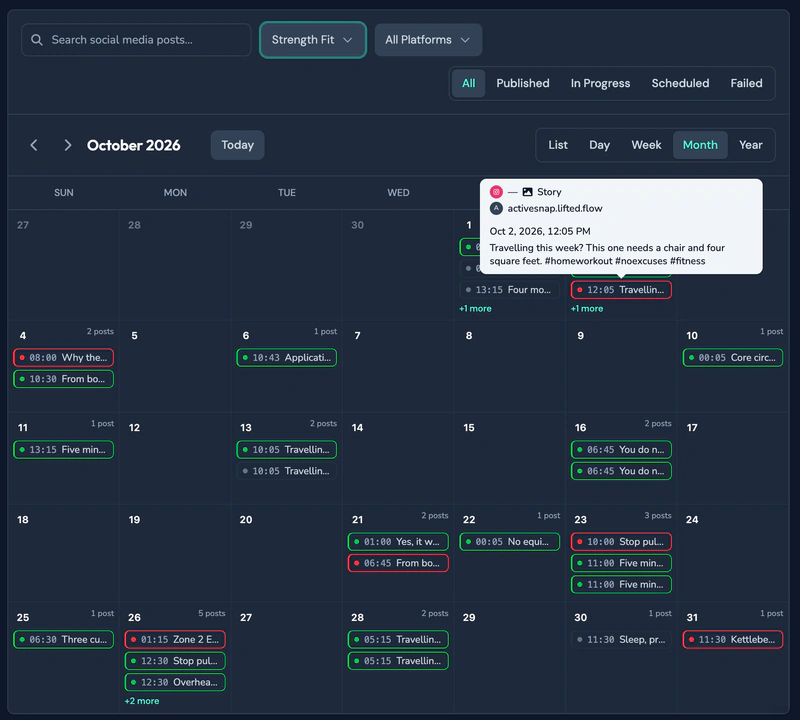
See a month of posts for one brand. 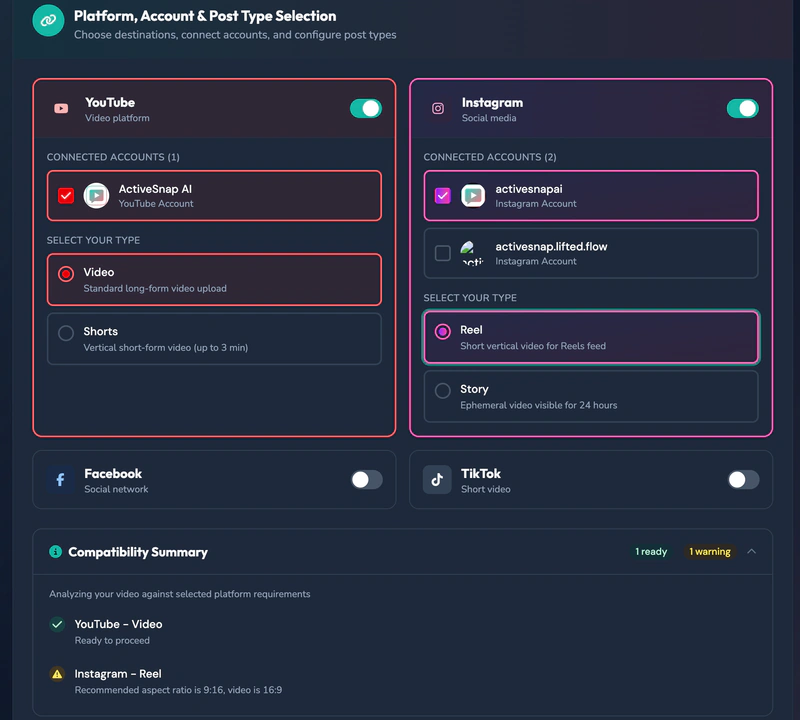
Check which formats fit your video on each platform. 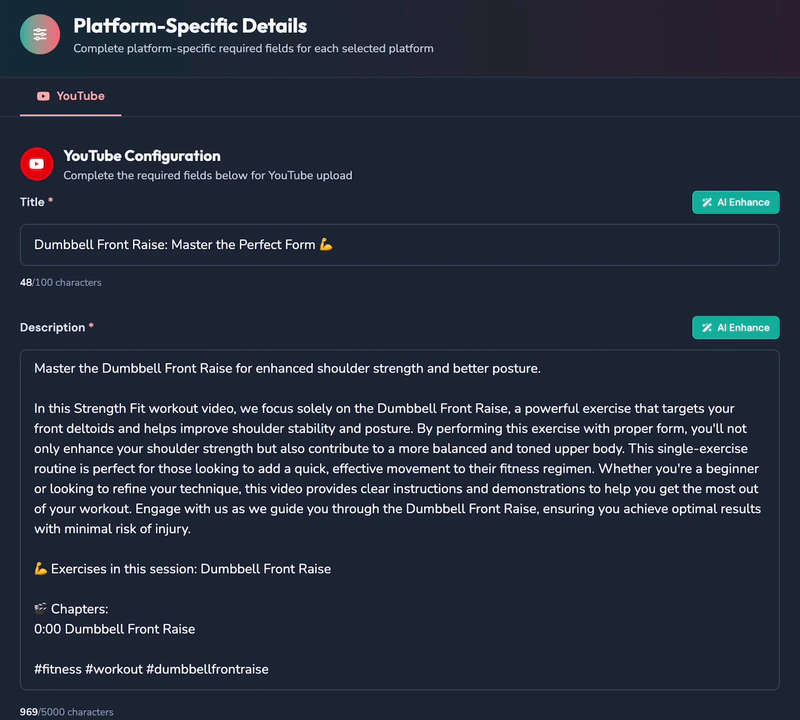
Edit the AI-drafted title, description, and YouTube chapters before posting.


What you get
See what’s going out this week
Use Week view to spot gaps in your schedule. Switch to List or Day for the details, or use Month and Year to plan further ahead. The calendar opens in Month view.
Filter by brand, platform, or status
See just one brand, check what’s scheduled for YouTube, or find posts that failed. Your filters stay in place when you switch views.
Set a different time for each platform
Publish to TikTok now and schedule your YouTube video for Saturday morning. Each scheduled post can have its own date, time, and time zone.
Check the format before you post
ActiveSnap checks your video’s length and aspect ratio for each format. If a format is unavailable, you’ll see why before you schedule it.
Draft captions and YouTube chapters
AI Enhance uses your video and Brand to draft titles, captions, and descriptions for each platform. It can also add timed chapters for the exercises in a long-form YouTube video. Edit the draft before it goes out.
Get notified when a post goes live
Track each post from queued to published. ActiveSnap notifies you when it goes live or if publishing fails.
How it works
- 1
Pick a video
Open Create Post and choose a finished video from Generated Videos or a video from Original Videos.
- 2
Choose where it goes
Select your platforms and pick a format for each. Create Post shows which options fit your video and why any are unavailable.
- 3
Write your post
Each platform has its own tab. Write the copy yourself or click AI Enhance for an editable draft.
- 4
Publish now or schedule for later
Set a date, time, and time zone for each scheduled post. Use Review to check the copy and publishing time for each platform.
- 5
Check the calendar
Scheduled posts appear on the Content Calendar and publish automatically. If a post fails, you’ll see the reason reported by the platform.
Calendar views and publishing formats
Calendar views
5- List
- Day
- Week
- Month
- Year
Filters
3- Brand
- Platform
- Status
YouTube
2- Long-form video
- Shorts
Instagram
2- Reel
- Story
Facebook
2- Page video
- Reel
TikTok
1- Video
Frequently asked questions
Which platforms can I post to?
You can publish now or schedule posts to YouTube, TikTok, Instagram, and Facebook. Connect your accounts in Settings, then choose which platforms to use for each post.
Can I publish at different times on different platforms?
Yes. Set each platform to publish now or schedule it for later. Choose a date, time, and time zone for each scheduled post and give it at least five minutes of lead time.
Which time zone does the calendar show?
The calendar uses your browser’s current time zone and displays it at the bottom of the page. If you travel, the calendar shows your posts in local time. They still go out at the moment you scheduled them for.
What if my video doesn’t fit a format?
Create Post checks your video’s length and aspect ratio for each format, such as YouTube Shorts or Instagram Stories. If a format is unavailable, you’ll see the reason and can choose one that fits.
Does AI Enhance cost extra?
AI Enhance is included, and drafting post copy or YouTube chapters uses none of your AI assist actions. If AI Enhance has no suggestion for a field, it keeps your wording.
How are YouTube chapters made?
Run AI Enhance on a long-form YouTube description. It adds timestamps and chapter titles based on the exercises in your workout.
Can I reschedule a post?
To change the time, delete the scheduled post and create it again. You can preview or delete it any time before it goes out.
Explore more features
Clips Builder
Describe the clips you want and turn one or more workouts into short vertical videos.
Thumbnail Generator
Turn a frame from your workout, or your own image, into thumbnails in your Brand's colors and font.
Animations
Drop in moving titles, name bars, text styles and transitions. Templates fill in your logo and colors for you.
Filters
Give your footage a new look in one click. Browse six categories and see each one on your own shot before you add it.
Licensed music library
ActiveSnap's own AI-generated music in five energy levels, licensed for videos you make with ActiveSnap.
Timers & loaders
Put a countdown or count-up timer on screen, with bars that fill as you go, so viewers can follow with the sound off.
Captions
Subtitles written from your audio in one click, in styles that pick up your brand font and colors.
Picture-in-picture preview
Show the next exercise in a small corner window while the current one plays, so viewers stay for the whole set.
Full toolbox
Every ActiveSnap feature for fitness creators, on one page.
Also see AI fitness video editor and Pricing.
Get your next workout on the calendar
Pick a video, choose where it goes, and set a publishing time for each platform.
No credit card required.
Last reviewed: 2026-11-17