
Licensed music library
A licensed music library for your workout videos
Find a track for your next HIIT session or cooldown. Browse nearly 100 tracks in the music library by energy, preview them in the editor, or ask the AI Assistant for suggestions. Every track is licensed for videos you make with ActiveSnap.
Try: “Suggest a calm track for the cooldown.”
No credit card required. During Open Beta, you can join our Discord and talk directly with the ActiveSnap team on any plan.
See it in action
Find a track and hear it in your workout
Preview a few tracks, add one where you want it to start, and set the volume so your cues come through.
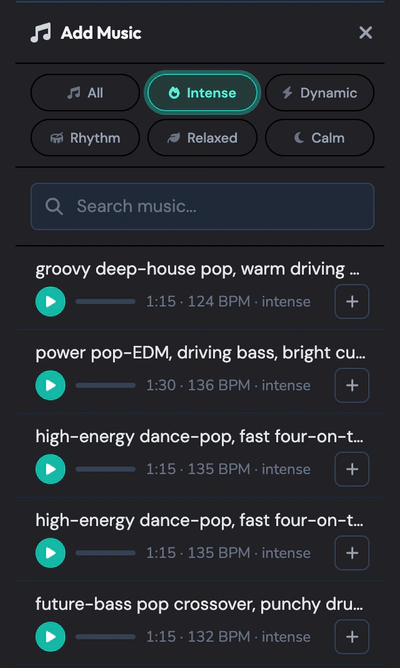
Browse tracks by energy, length, and BPM. 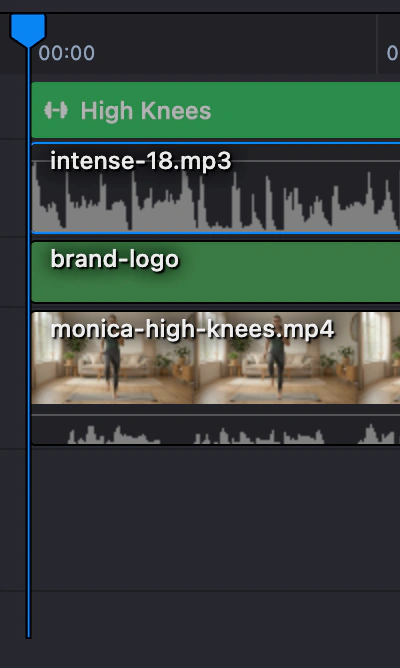
Add a track where you want it to start. Longer tracks trim to fit. 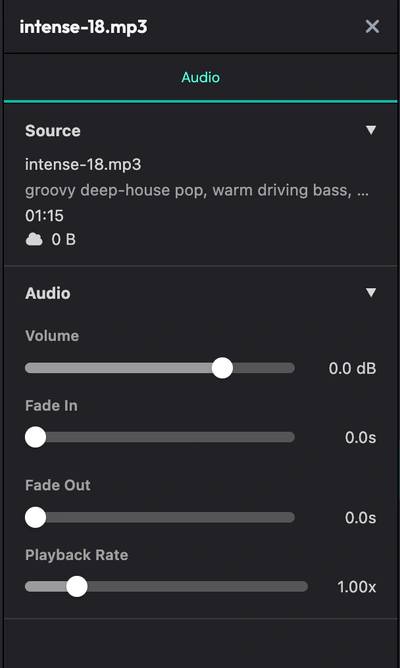
Lower the music so viewers can hear your cues.
What you get
Find music that fits the workout
Browse five energy levels, from Intense to Calm. Each track shows its length and beats per minute (BPM).
Preview any track
Press play to listen, then add the one that fits.
Make the track fit your video
If the music runs past the end of your video, ActiveSnap trims it to fit. Drag a shorter track to extend it, and it loops with a crossfade at each repeat.
Keep your coaching cues clear
Lower the music under your voiceover or mute the music track entirely.
Ask the AI Assistant for music ideas
Try “Suggest something upbeat for the warm-up.” The AI Assistant suggests tracks from the library, and you choose what to add.
Licensed for videos you make with ActiveSnap
The library contains AI-generated tracks you can use in your ActiveSnap videos.
How it works
- 1
Open Music
In the Timeline Editor, open the Music tab. Browse by energy level or search for a track by name.
- 2
Preview a track
Press play to hear it and check its length and BPM.
- 3
Add it where you want it to start
Move to that point on the timeline, then click the track. ActiveSnap trims any music that runs past the end of the video.
- 4
Set the volume and length
Lower the music so your voice stays clear. To make it play longer, drag the end of the track. It loops with a crossfade, and the timeline marks each repeat.
Browse by energy level
Intense
25+Dynamic
15+Rhythm
15+Relaxed
15+Calm
15+
Frequently asked questions
Where can I use these tracks?
The music is licensed for use in videos you make with ActiveSnap.
How many tracks can I choose from?
Nearly 100 across five energy levels: Intense, Dynamic, Rhythm, Relaxed, and Calm. Each track shows its length and BPM.
What if the track doesn’t match my video length?
ActiveSnap trims music that runs past the end of your video. If a track ends too early, drag it longer to loop it with a crossfade.
Can I play music under my voiceover?
Yes. Lower the music track’s volume so viewers can hear your instructions, or mute the track entirely.
Can the AI Assistant suggest a track?
Yes. Try “Suggest an upbeat track for this circuit.” It suggests music from the library for you to preview and choose from.
Can I browse and add tracks myself?
Yes. Open the Music tab in Manual Mode to search, preview, and add tracks directly.
Explore more features
Clips Builder
Describe the clips you want and turn one or more workouts into short vertical videos.
Thumbnail Generator
Turn a frame from your workout, or your own image, into thumbnails in your Brand's colors and font.
Animations
Drop in moving titles, name bars, text styles and transitions. Templates fill in your logo and colors for you.
Filters
Give your footage a new look in one click. Browse six categories and see each one on your own shot before you add it.
Timers & loaders
Put a countdown or count-up timer on screen, with bars that fill as you go, so viewers can follow with the sound off.
Captions
Subtitles written from your audio in one click, in styles that pick up your brand font and colors.
Picture-in-picture preview
Show the next exercise in a small corner window while the current one plays, so viewers stay for the whole set.
Social media calendar
Post now or pick a time for YouTube, TikTok, Instagram and Facebook, and see every post on one calendar.
Full toolbox
Every ActiveSnap feature for fitness creators, on one page.
Also see AI fitness video editor and Pricing.
Find the right track for your next workout
Open the Music tab, preview a few tracks, and add the one that fits.
No credit card required.
Last reviewed: 2026-11-17