
Filters
25+ video filters for your workouts
Try 25+ video filters on your own footage, from faded film to bright neon. See each look on the frame you're editing. Click a filter to apply it right where you've paused the video. You can change it afterwards.
No credit card required. During Open Beta, you can join our Discord and talk directly with the ActiveSnap team on any plan.
See it in action
See the difference on your own footage
Preview a few looks on the same frame, then apply the one you like.
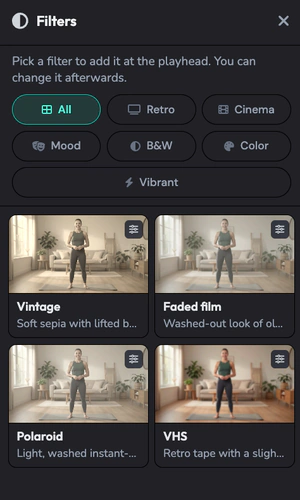
Browse six filter groups in the Filters panel. 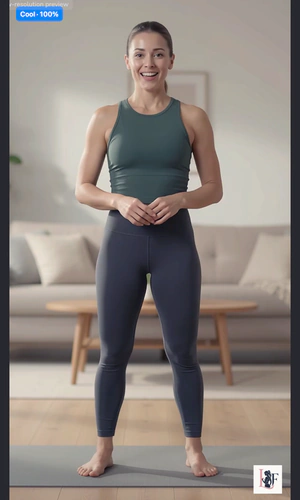
See a filter applied to your workout frame. 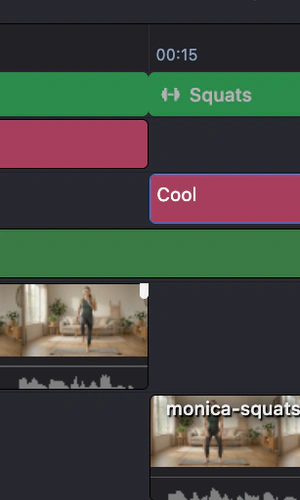
Give two episodes in the same series a consistent look.
What you get
Find a look that fits your workout
Try VHS for a retro feel, Noir for crisp black and white, or Neon for brighter color.
Preview filters on your footage
Each filter card shows the frame you're editing with the filter applied, plus a short note about the look.
Apply a filter in one click
Pause at the moment you want the look to start, then click the filter.
Switch looks as you edit
Try a filter and keep editing. You can change it afterwards.
Give your series a consistent look
Use the same filter across episodes so they feel like part of the same series.
How it works
- 1
Open Filters
In the Timeline Editor, open the Filters tab and choose a group.
- 2
Preview a few looks
Each card shows how the filter looks on the frame you're editing.
- 3
Apply your favorite
Pause where you want the look to start, then click the filter.
- 4
Try a different look anytime
Swap the filter as you keep editing.
Browse video filters
Retro
5- Vintage
- Faded film
- Polaroid
- VHS
- Retro pop
Cinema
4- Teal & orange
- Blockbuster
- Modern noir
- Drama
Mood
4- Dream
- Melancholy
- Romantic
- Nostalgic
B&W
4- Classic B&W
- High contrast
- Noir
- Silver
Color
3- Warm
- Cool
- Golden
Vibrant
6- Neon
- Saturated
- Tropical
- Pop art
- Electric
- Cyberpunk
Frequently asked questions
How many filters are there?
There are 26 filters across six groups. Browse Retro, Cinema, Mood, B&W, Color, and Vibrant.
Can I preview a filter on my footage?
Yes. Each card shows the current frame from your video with that filter applied.
Where does the filter start?
It starts at the playhead, the spot where you've paused the video on the timeline.
Can I swap a filter after I add it?
Yes. You can replace it with a different look as you edit.
Do I need to know color grading?
Each filter has a preset look. Use the previews to choose what works for your footage.
How do I keep a series looking consistent?
Use the same filter on each episode. For example, pick Golden for a warmer look across a series.
Explore more features
Clips Builder
Describe the clips you want and turn one or more workouts into short vertical videos.
Thumbnail Generator
Turn a frame from your workout, or your own image, into thumbnails in your Brand's colors and font.
Animations
Drop in moving titles, name bars, text styles and transitions. Templates fill in your logo and colors for you.
Licensed music library
ActiveSnap's own AI-generated music in five energy levels, licensed for videos you make with ActiveSnap.
Timers & loaders
Put a countdown or count-up timer on screen, with bars that fill as you go, so viewers can follow with the sound off.
Captions
Subtitles written from your audio in one click, in styles that pick up your brand font and colors.
Picture-in-picture preview
Show the next exercise in a small corner window while the current one plays, so viewers stay for the whole set.
Social media calendar
Post now or pick a time for YouTube, TikTok, Instagram and Facebook, and see every post on one calendar.
Full toolbox
Every ActiveSnap feature for fitness creators, on one page.
Also see AI fitness video editor and Pricing.
Try a new look on your next workout video
Preview a few filters on your own footage and apply your favorite in one click.
No credit card required.
Last reviewed: 2026-11-17