To film workout videos on TV, make the text bigger, make the timer the biggest thing on screen, and show the next exercise before it starts.
A workout video on TV is a follow-along workout played on a living-room screen, with the viewer standing on a mat across the room. YouTube has said since early 2025 that TV is the main device for watching YouTube in the US. Nobody has published how much of that is workouts.
Most workout videos are still made as if the viewer is holding a phone.
That creates a simple problem. The timer is too small to read. The exercise name sits in a corner. The next move is a surprise, and the remote is on the sofa.
This guide shows how to film and label a follow-along workout for the living room. You don't need new equipment. You need bigger text, a clear timer, and a little more warning before each change.
Why do workout videos on TV matter now?
Workout videos on TV matter now because the TV is a growing screen for YouTube. In August 2026, YouTube took a record 15.8% of all TV viewing in the US, according to Nielsen. That is about twice Netflix's 7.7%. The number covers all YouTube viewing, not workouts.
Nielsen also said the growth came from older viewers. YouTube viewing on TV among adults 50 and older rose 9% in August 2026, according to Nielsen.
On Alphabet's October 2026 earnings call, Google's chief business officer said the living room brought in more than a third of YouTube's ad revenue in the third quarter.
YouTube has said since early 2025 that TV is now the main device for watching YouTube in the US.
One caution: none of these numbers is about fitness. Nobody has published how much workout viewing happens on a TV.
So check your own channel first.
How to check your TV share
Open YouTube Analytics and go to the Audience tab. The Device type report shows what percent of your watch time comes from TV, mobile, computer and tablet.
If TV is a large share of your watch time, the rest of this guide applies to you.
How viewers get a workout onto the TV
People watch YouTube workout videos on a TV in four ways. They use the YouTube app on a smart TV or streaming stick, cast from a phone, use AirPlay, or plug in a laptop with an HDMI cable.
This means the normal YouTube app on a television. It is not YouTube TV, the paid live TV service.
In every case, the result is the same. The video is on a big screen, and the viewer has no hands free.
The viewer is also far away. Apple's TV guidelines say viewers are often 8 feet or more from the screen. Amazon's Fire TV guidelines say 10 feet or more.
What changes when the viewer is across the room?
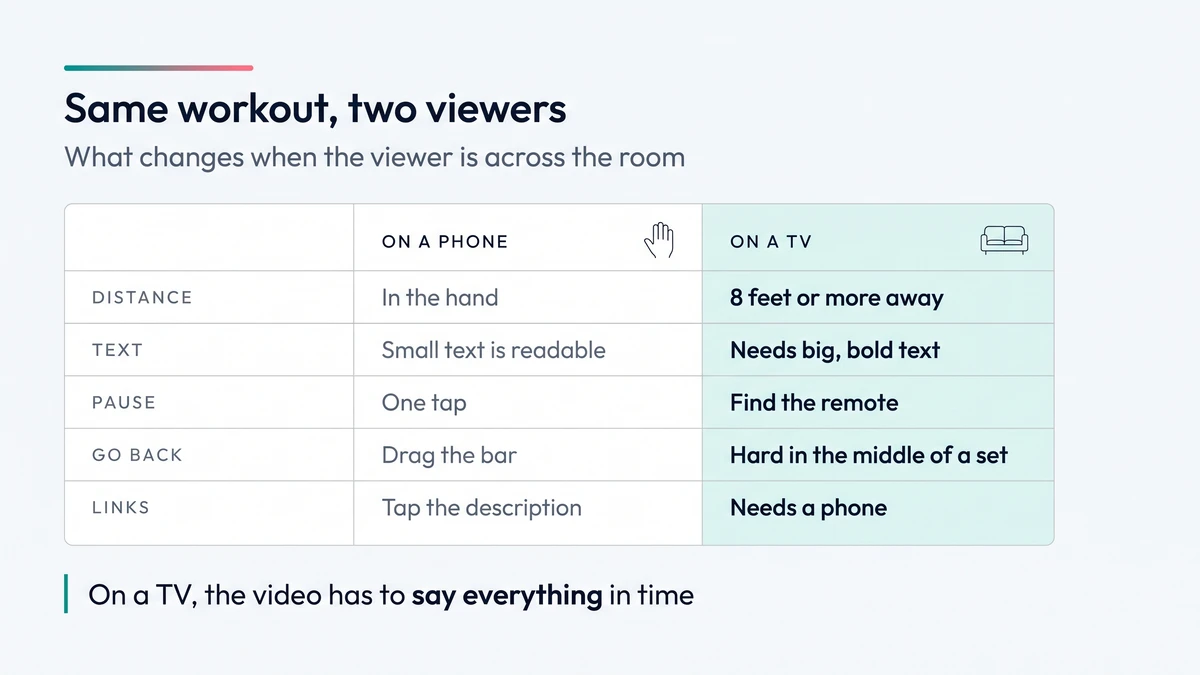
When the viewer is across the room, the workout video has to do more of the work. A TV viewer can't easily read small text, pause, go back ten seconds or tap a link. The timer, the exercise name and the next move all have to be readable on screen without help.
A phone viewer can do four things a TV viewer can't do easily:
- Read small text
- Tap to pause
- Drag the progress bar back ten seconds
- Tap a link in the description
A person in the middle of a set of squats can do none of these.
YouTube's own TV tips for creators cover 4K, thumbnails, playlists and your channel banner. They say nothing about the text on screen.
For a follow-along workout, the text on screen is how people keep up. So that is where to start.
What is the minimum font size for a TV screen?
There is no official minimum font size for text inside a video on a TV screen. The rules that TV app makers publish for their own screens are a good floor. Amazon's Fire TV guidelines set the smallest body text at about 28 pixels tall on a 1080p screen. Apple's minimum for Apple TV is 23 points. Treat about 28 pixels as the floor.
The table shows what Apple, Amazon and Google say about viewing distance, text size and font weight.
| Guideline | What it says | Source |
|---|---|---|
| Viewing distance | Often 8 feet or more | Apple |
| Viewing distance | 10 or more feet | Amazon Fire TV |
| Smallest text | 23 pt minimum, 29 pt default | Apple |
| Smallest body text | At least 14sp, about 28 px on a 1080p screen | Amazon Fire TV |
| Font weight | Avoid thin and decorative fonts |
Points (pt) and sp are units that app designers use. The pixel figure is the one that matters for your video.
In plain English: on a 1080p video, about 28 pixels tall is the smallest text a TV app would use for someone sitting still. Workout text needs to be bigger.
And that number is for someone sitting still on a sofa.
Your viewer is moving. They glance at the screen for half a second between reps. They need bigger text than that. The timer needs to be several times bigger.
A starting point for a 1080p workout video
No source gives these sizes. They are a sensible place to start, and you should test them on a real TV.
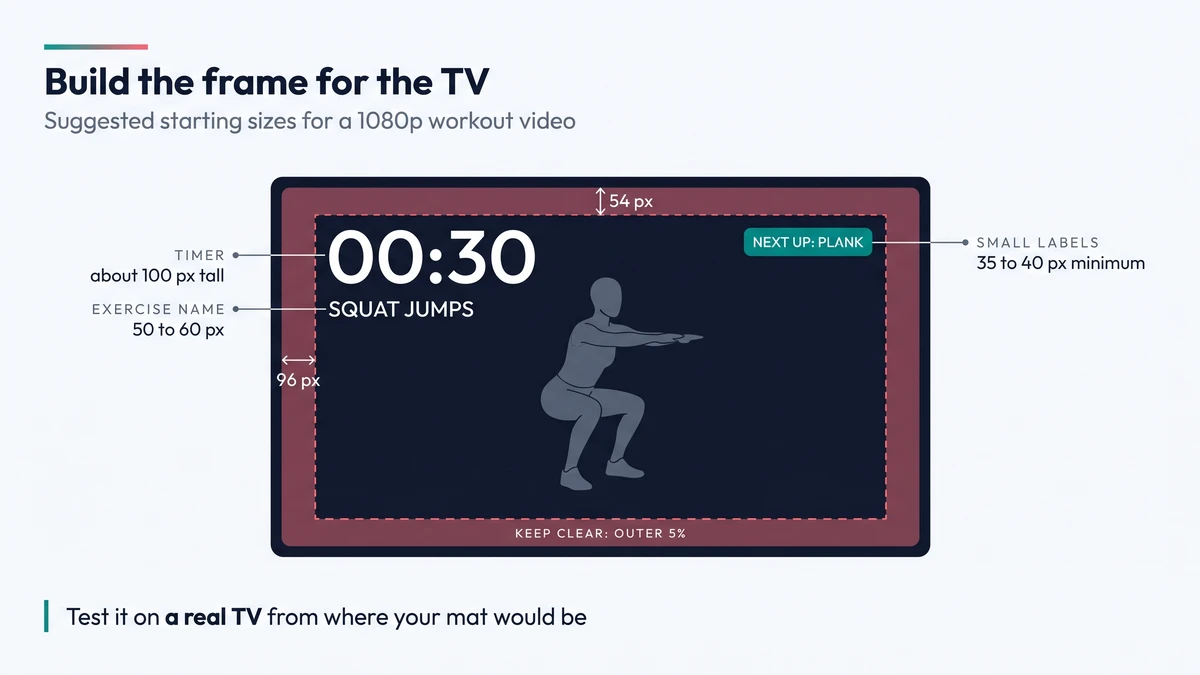
- Timer digits: about a tenth of the frame height, or roughly 100 pixels tall
- Exercise name: about half that, or roughly 50 to 60 pixels tall
- Small labels such as "next up" or a round counter: no smaller than 35 to 40 pixels
If you film in 4K, double each number.
Use a bold font. Thin fonts break up at a distance.
Test it on a real TV
- Play the video on a TV.
- Stand where you would put a mat.
- Do ten jumping jacks while looking at the screen.
If you can't read the timer during the jumping jacks, make it bigger.
How far from the edge should text sit on a TV?
Text and graphics in a workout video made for TV should stay out of the outer 5% of the picture. On a 1080p frame, that is 96 pixels in from the left and right and 54 pixels in from the top and bottom.
The European Broadcasting Union's safe-area standard, EBU R 95, Google's Android TV guidelines and Amazon's Fire TV guidelines all give a 5% margin for graphics.
The old reason was that TVs cut off the edges of the picture. Google notes that most modern TVs no longer cut off the edges.
The margin is still worth keeping. Some older sets still crop. And text pushed into a corner is harder to find from across a room.
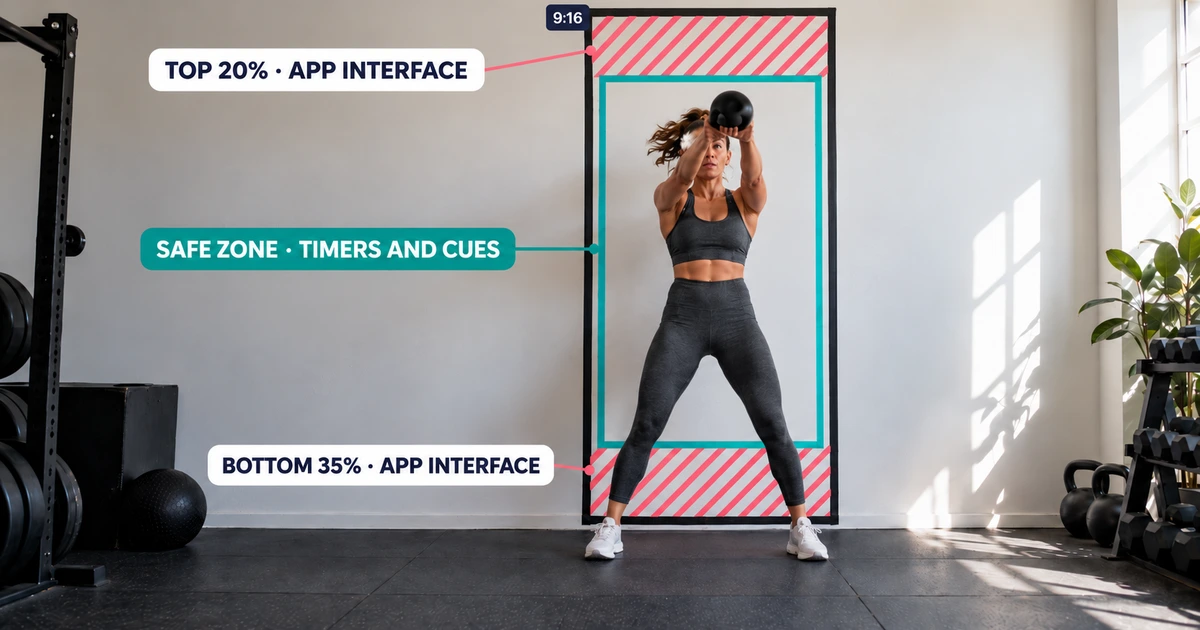
This is a different problem from phone safe zones. On a phone, the app covers part of your video. That is covered in Workout Video Formats & Safe Zones.
How do you make text readable over workout footage?
To make text readable over workout footage, put a solid or half-transparent box behind every piece of text. Workout footage is busy, and white text placed straight on top of it will disappear on some frames.
There is a person moving, a mat, a wall, maybe a window. A box gives the text one steady background.
The web accessibility standard WCAG 2.2 asks for a contrast ratio of at least 4.5 to 1 between text and its background. That rule was written for websites, but the idea carries over. You can only control contrast if you control what is behind the text.
Two more tips from Amazon's Fire TV guidelines:
- TVs show stronger contrast than computer screens, so very bright colors can look harsh
- Slightly softer colors are easier on the eyes at TV size
How big should the timer be on a TV?
The timer should be the biggest text on screen in a workout video made for TV. A good starting size is about a tenth of the frame height, or roughly 100 pixels tall on a 1080p video. No official rule gives this size, so test it on a real TV.
In an interval workout, the timer is what people check between reps. Give the timer the most space and keep it in the same place for the whole workout.
Apple keeps the timer on too. In Fitness+ on Apple TV, you can hide the clock. But the interval timer still shows even when you turn the time display off.
For your own videos:
- Put the timer in the same place for the whole workout
- Keep it in the upper part of the frame, clear of the outer 5% of the picture
- Make it the biggest text on screen
- Add a bar or ring that fills up, so people can read progress without reading numbers
If you build timers in an editor, check that you can change the size. In ActiveSnap, an AI video editor for fitness creators, you can add a countdown timer, then drag or resize it on screen and adjust its size, weight and color.
When should you show the next exercise?
Show the next exercise during the last 5 to 10 seconds of the current one. Say its name out loud and put the name on screen at the same time. A TV viewer can't easily go back to catch a change they missed, so the warning has to come early.
On a phone, a missed change costs one tap. On a TV, it means walking to the sofa, finding the remote and scrubbing back.
Most people won't do that. They guess, or they stop.
Apple's TV workouts go further. You can't rewind or fast-forward a Fitness+ workout on Apple TV at all. So the video itself has to tell you everything in time.
Do the same in your videos:
- Say the next exercise out loud during the last 5 to 10 seconds of the current one
- Show its name on screen at the same time
- If you can, show a small moving preview of the next move
- Leave a short pause between exercises so people can change position
A small corner window is the clearest way to do this. You can build one in most editors with a second video layer. ActiveSnap has a picture-in-picture preview that shows the next move while the current exercise plays, and can add an UP NEXT label.
Chapters may help here too. In April 2024, Android Authority reported that the YouTube app on a TV shows auto-generated key moments as markers on the progress bar, and that the remote can step through them. That report isn't about your own chapters. YouTube's help page doesn't say which devices show chapters, so check on your own TV. If your TV shows them, a viewer can jump to the cooldown without scrubbing. The chapter rules are in Fitness Video Retention: Why Follow-Alongs Win on Minutes.
Do description links work on a TV?
Not easily. YouTube's help page describes one way to reach a creator's links from a TV: open the description on a phone connected to the TV and tap the link there. It doesn't describe clicking a link on the TV itself. Most people in the middle of a workout won't pick up the phone.
So anything you want the viewer to do should be spoken or shown on screen:
- The name of the program or the next video
- Where to find the workout plan
- What equipment they need, at the very start
Put the equipment list in the first 15 seconds. Nobody wants to find out at minute 12 that they need a resistance band.
Resolution, thumbnails and sound
For workout videos on TV, film in 4K if your camera and computer handle it well, use a sharp thumbnail with very few words, and keep your voice clearly louder than the music. Clean 1080p with readable text is fine too.
Resolution. YouTube says videos uploaded in 4K get higher watch time on TVs than lower resolutions. It doesn't give a number, and bigger channels may simply be more likely to film in 4K. If your camera and computer handle 4K well, use it. If not, clean 1080p with readable text is fine.
Thumbnails. On a TV, your thumbnail is shown much larger. YouTube now asks for thumbnails at 3840 × 2160 pixels and accepts files up to 50 MB when you upload from a computer. Use a sharp image, a clear pose and very few words. If you make thumbnails from a workout frame, ActiveSnap's Thumbnail Generator lets you make the text bigger and raise the contrast before you save.
Sound. There is no official guide for TV speakers. This part is plain craft advice. TV speakers are weak at the low end, and people often play workouts at low volume. Keep your voice clearly louder than the music. YouTube's stable volume setting evens out loud and quiet parts on TVs, but it won't fix a voice that is buried under a track.
Which workouts suit big timers and labels?
Big timers and labels suit interval workouts best. They suit yoga and Pilates less, because those classes are led by voice and a large timer can get in the way of the person the viewer is copying.
The interval formats they fit:
- HIIT
- Dumbbell strength
- Walking workouts
- Timed stretching
For voice-led classes, keep the screen clean. Use chapters, a clear voice and a short on-screen label when the pose or the side changes.
There is also a trade-off for every format. Bigger text covers more of the picture. Keep overlays to the top of the frame so the body stays in full view.
Workout videos on TV: common questions
How do people watch workout videos on TV?
People watch YouTube workout videos on a TV in four ways. They use the YouTube app on a smart TV or streaming stick, cast from a phone, use AirPlay, or plug in a laptop with an HDMI cable.
This means the normal YouTube app on a television. It is not YouTube TV, the paid live TV service.
How do I know if my viewers watch on a TV?
Check the Device type report in YouTube Analytics, on the Audience tab. The report shows what percent of your watch time comes from TV, mobile, computer and tablet.
Do I need to film workout videos in 4K for TV?
No. YouTube says videos uploaded in 4K get higher watch time on TVs, but it gives no number, and bigger channels may simply film in 4K more often. Clean 1080p with readable text is fine.
Do YouTube chapters work on a TV?
Probably, but check your own TV. In April 2024, Android Authority reported that the YouTube app on a TV shows auto-generated key moments as markers on the progress bar. That report isn't about your own chapters, and YouTube's help page doesn't say which devices show chapters.
Do modern TVs still cut off the edges of the picture?
Mostly no. Google notes that most modern TVs no longer cut off the edges. It is still worth keeping text out of the outer 5% of the picture. Some older sets still crop, and text in a corner is harder to find from across a room.
Do big timers work for yoga and Pilates videos?
Less well. Yoga and Pilates classes are led by voice, and a large timer can get in the way of the person the viewer is copying. For voice-led classes, keep the screen clean and use chapters, a clear voice and a short on-screen label.
The living-room check for workout videos on TV
Before you publish, check these:
- ✅ Your TV share: look at the Device type report first.
- ✅ Timer: the biggest text on screen. Start at about a tenth of the frame height and test it.
- ✅ Exercise name: readable during ten jumping jacks from mat distance.
- ✅ Font: bold, with a solid or half-transparent box behind it.
- ✅ Margins: nothing important in the outer 5% of the frame.
- ✅ Next exercise: said out loud and shown on screen 5 to 10 seconds early.
- ✅ Equipment: named in the first 15 seconds.
- ✅ Links: anything important is spoken, because a TV viewer needs a phone to open a link.
- ✅ Chapters: added, and checked on your own TV to see if the remote can step through them.
- ✅ Voice: clearly louder than the music.
- ✅ Final test: watch it on a real TV from across the room.
To film workout videos on TV, plan for a viewer who is across the room with no hands free. Bigger text, a timer that is the biggest thing on screen, and an early cue for the next exercise cover most of it.
For titles, chapters and growing the channel itself, see How to Grow a Fitness YouTube Channel.
If you make follow-along workouts every week, placing timers and exercise labels by hand takes time. A fitness-specific editor such as ActiveSnap can add them for you. You should still watch the final video on a TV before you publish.